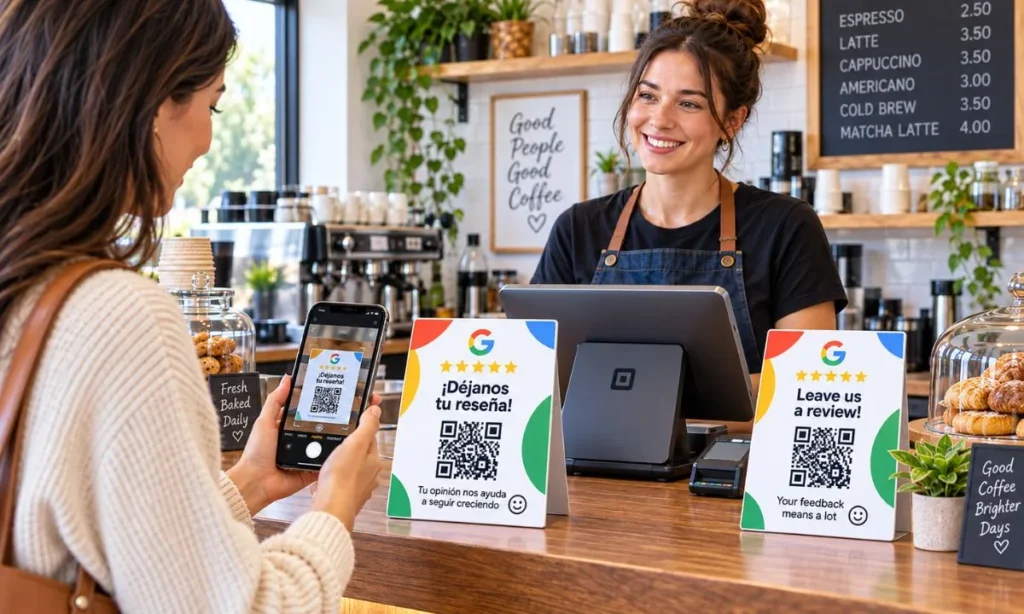
Google Review QR Code Generator
Create a free QR code card so your customers can quickly access Google and share their experience with your business.
will appear here
With our Google review QR code generator, you can create a free, customized QR code for your business and make it easy for customers to go straight to your Google Business Profile and leave a review.
Just enter your business name and paste in your Google Maps link or, preferably, the direct link for requesting reviews. You can also optionally add your business logo and generate a card that’s ready to download, print, and display at your location.
Use the Google review QR code generator now to help your business rank higher.
You don’t need to install an app or have any technical knowledge. The code is generated right here on this page, and you can use it at restaurants, stores, repair shops, hair salons, medical offices, hotels, and virtually any other business with a Google presence.
What Is a QR Code for Google Reviews?
A QR code for Google reviews is a scannable code that takes customers to a business’s Google Business Profile or, better yet, directly to the page where they can write a review.
The benefit is simple: instead of asking customers to open Google, type in your business name, find your listing, go to the reviews, and figure out where to write one, you can simplify the whole process to a single scan.
Google lets businesses share links and QR codes to request reviews. For example, you can include these codes on receipts and in thank-you emails, or display them at your business.
Our tool offers an added benefit: you can create a custom card featuring your business name and logo, ready to download and use in print or digitally.
How to Use Our Google Review QR Code Generator
Creating your card is easy. We designed this tool especially for business owners who want to get more reviews without having to learn how to use design software or complicated QR code generators.
1. Enter Your Business Name
In the “Business name” field, enter the name you want to appear on your card.
For example:
- El Sabor Restaurant
- Molina Refrigeration
- Carolina Hair Salon
- Sonríe Dental Clinic
- Rodríguez Auto Repair
Your business name is required because it will be one of the main elements on the card your customers see.
Use your business’s real, recognizable name so customers immediately know which business they’re leaving a review for.
2. Copy Your Google Maps Link or Review Request Link
This is the most important field. Paste the URL you want customers to visit when they scan the QR code.
You can use a Google Maps link, but we recommend using the dedicated review link. This cuts down on the steps customers need to take.
In your Google Business Profile, you can find the review options and copy the relevant link. Google also lets you share this link directly with customers.
If your business isn’t listed yet, we’ll explain how to get started later.
3. Add your business logo (optional)
Your logo is optional.
If you have one, upload it to personalize the card and give it a more professional look. This is especially useful if you plan to print the QR code and display it on a counter, at the front desk, on a table, by the register, or alongside invoices.
If you don’t have a logo yet, that’s okay. The tool can still create your card using just your business name.
4. Click “Generate QR Code”
Once you’ve entered your business name and link, click the “Generate QR Code” button.
Our tool will use the URL you entered to automatically create the QR code your customers will scan.
Before printing, we recommend scanning the QR code with your own phone to make sure it opens the exact business profile or form you want.
5. Check the preview
You can preview the card before downloading it.
Be sure to check:
- Business name.
- Logo, if you added one.
- QR code.
- Card design.
- The link the QR code opens.
This quick check can save you from printing dozens of cards only to discover that you entered the wrong URL.
6. Download your QR code card
When everything looks right, click “Download Card”.
You’ll get an image you can save to your computer or phone, then print, share on WhatsApp, or add to other marketing materials.
Which link should I enter in the QR code generator?
This is usually the main question.
You can enter your business’s Google Maps URL, but to ask customers for reviews, it’s better to use the link specifically provided for leaving a review.
The difference comes down to the number of steps.
With a general Google Maps link, users may need to navigate your business profile to find the reviews section. A link created specifically for requesting a review makes the process more direct.
To get the link, open the Business Profile you manage and look for the options related to reviews and getting more reviews. From there, you can copy the link to share with your customers. Google also currently lets you get a QR code from this section using a desktop browser.
Then simply return to our generator, paste the link, and create a custom card featuring your brand.
How to Add Your Business to Google Maps Before Creating a QR Code
If you don’t have a Business Profile yet, you’ll first need to create or claim one.
At Monetiza Todito, we have a comprehensive guide that explains how to add your business to Google Maps step by step, including how to create, set up, and optimize your profile.
Learn how to add your business to Google Maps step by step
You can also watch the video tutorial below if you’d prefer to follow along:
Watch the video: How to add a business to Google Maps step by step
Once your business is listed and you can manage its Business Profile, return to this tool, get your review link, and turn it into a QR code.
This gives you a complete process: Google Maps → review link → QR code → customer scans → customer can share their experience.
Why Use a QR Code to Request Reviews?
Many businesses have satisfied customers, but very few make it easy for them to share their feedback.
After buying a product or receiving a service, most people simply get on with their day. Even if they had a great experience, they’re unlikely to look up the business on Google several days later.
A QR code removes much of that friction.
Customers can pull out their phone, open the camera, scan the code, and reach the right link in seconds.
Google recommends reminding customers that they can leave a review and allows businesses to use links or QR codes to make it easier.
Where to Place Your Review QR Code
Once you’ve downloaded the card, you can use it in different ways depending on your type of business.
A restaurant can place it by the register or show it to customers at the end of their meal. A hair salon can display it at the front desk. A technician can carry a small printed card and hand it to customers after finishing a job.
You can also add it to:
- Invoices and receipts.
- Business cards.
- Countertops.
- Restaurant tables.
- Reception areas.
- Printed estimates.
- Packaging.
- Thank-you emails.
- Brochures.
- Promotional materials.
Google specifically mentions receipts, thank-you emails, chat interactions, and printed materials displayed at your business as possible ways to ask for reviews.
The key is not to display the QR code everywhere without context, but to place it where customers who have actually used your product or service can easily find it.
When to Show a Customer the QR Code
The right time depends on your business.
For example, if you’ve repaired a customer’s air conditioner and they’ve just confirmed it’s working again, that’s a natural time to let them know they can share their experience by scanning the QR code.
At a restaurant, it might be after the meal. At a store, after checkout. At an agency, once a project has been successfully delivered.
Keep your request simple and neutral. There’s no need to tell customers how many stars to give or what to write.
You could say:
“Thanks for choosing us. If you’d like to share your experience, scan this QR code and leave us a review on Google.”
This lets everyone freely share what they really think of your service.
Don’t Offer Discounts in Exchange for Reviews
This is important.
Avoid wording like:
“Leave us a 5-star review and get 10% off.”
Google requires reviews to reflect genuine experiences and prohibits offering payments, free products, discounts, or other incentives in exchange for posting, changing, or removing reviews.
You should also avoid asking only customers you already know are satisfied for reviews while blocking or discouraging others. Requests should let customers share their genuine experiences.
The goal of the QR code should be to make it easier to leave a review, not to manipulate your rating.
Do Google Reviews Help Local Businesses?
Reviews appear alongside your Business Profile in Google Maps and in search results related to your business, where they can provide useful information to potential customers.
But collecting reviews should be part of a broader strategy.
Creating a profile and collecting reviews isn’t enough. You should also make sure your categories, services, website, business information, and content related to local searches are all in good shape.
To build on this, check out our complete guide on how to improve your local SEO and your business’s visibility on Google:
This connects the tool to a broader strategy: the QR code makes it easier for customers to leave reviews, while local SEO builds your business’s overall online presence.
QR Code Generator for Restaurants
Restaurants are among the businesses where this system is especially easy to put in place.
You can print a small card for each table or place the QR code near the register. Once customers have finished their visit, they can scan it right from their phones.
You don’t need to print a different QR code for each table. If all reviews should go to the same Business Profile, you can use the same code.
QR Code Generator for Hotels and Lodging
You can place a QR code card at the front desk, inside an information folder, or anywhere guests will see it at the end of their stay.
Make sure the code links to the correct business profile, and never make a customer’s review conditional on anything.
QR Code Generator for Auto Shops and Technical Services
Auto shops, refrigeration technicians, electricians, plumbers, installers, and other service providers can use the QR code once the job is done.
You can even save the card on your phone and show it to customers without printing anything.
Customers can open their camera, scan the code, and continue on their own device.
QR Code Generator for Hair Salons, Barbershops, and Beauty Salons
Businesses that serve repeat customers can also benefit from keeping a card visible at the front desk.
A custom design featuring your business name and logo makes the QR code feel like part of your brand, rather than a code placed there without any context.
Do I Need to Print the Card?
No.
You can use the QR code entirely in digital form.
For example, you can save the image on your phone and send it to a customer on WhatsApp after they’ve received your service.
You can also add it to a design for social media, a digital invoice, or an email.
For brick-and-mortar businesses, though, printing a card is especially convenient because it’s always available to customers.
How to Check That Your QR Code Works
Don’t print a large batch of cards before testing the code.
After generating the QR code:
- Open the camera on another phone.
- Point your camera at the code.
- Tap the notification that appears.
- Check the address that opens.
- Make sure it belongs to the right business.
- Make sure the QR code is still easy to scan when printed.
If you have both devices available, test it on Android and iPhone, too.
A technically correct QR code won’t do much good if it was created with the wrong link.
QR Code for Google Reviews: General Link or Direct Link
Whenever possible, use the link specifically intended for requesting a review.
For example:
Less direct option:
QR code → business profile → user looks for reviews → user finds where to write one.
Recommended option:
QR code → review request link → user continues to leave a review.
Every unnecessary step could cause some users to abandon the process.
That’s why our tool is designed to turn the link you already have into a simple, customizable QR code card.
Benefits of Creating a Custom QR Code Card
A QR code on its own can work, but many people won’t know what will happen when they scan it.
A card provides context.
Customers can see the business name, star rating, a call to action, and, if you like, your logo.
Plus, downloading a complete card makes it easy to print the result without opening Canva, Photoshop, or another editor just to create a design around the code.
With our generator, you can complete the whole process on one page.
Frequently Asked Questions About the Google Review QR Code Generator
Is the Google Review QR Code Generator free?
Yes. Enter your business name and the corresponding link to generate a QR code on this page.
You can also optionally add your business logo and download the finished card.
Do I need to sign up to generate a QR code?
You don’t need to create an account to use the tool.
Enter the requested information and generate your code.
What information is required?
You need to enter your business name and a valid URL.
The logo is optional, so you can create your card even if you don’t have a business logo yet.
Can I use my Google Maps URL directly?
Yes, you can generate a QR code using a valid Google Maps URL.
However, if your goal is to get reviews, it’s better to use the review request link, which takes customers directly to the review form.
Where can I find my review link?
Go to the Google Business Profile you manage and look for the review options. Google lets you get and share a link to request reviews, and you can also get a QR code using a desktop browser.
Copy the link and paste it directly into our generator.
Can I add my logo to the card?
Yes. The tool includes an optional field where you can upload your business logo.
If you don’t have a logo, just leave the field blank.
Can I print the QR code?
Yes. After generating the card, you can download it and use it to create printed materials.
Before printing a large quantity, test the code to make sure it scans properly.
Can the same QR code be used more than once?
Yes. As long as the destination URL is still active, different customers can scan the same QR code.
You don’t need to generate a new one for every customer.
Can I send it on WhatsApp?
Yes. You can save the card and share it digitally.
Google also lists WhatsApp as one of the ways to share a review request.
Can I ask customers directly for a five-star review?
It’s best to ask for an honest review without telling customers what rating to give.
Google allows you to encourage customers to share genuine experiences, but prohibits practices intended to manipulate ratings or incentivize certain reviews.
Can I offer a discount in exchange for a review?
You shouldn’t. Offering money, products, free services, or discounts in exchange for reviews violates Google’s policies on fake engagement.
Do I need to have a physical location?
Not necessarily.
Some businesses operate from a physical location, while others travel to serve their customers. For this tool, what matters is having a business listing or valid URL where customers can share their experience.
If you’re not sure how to set up your business’s online presence, check out our guide on adding your business to Google Maps.
Create Your Google Review QR Code Now
If your business is already listed on Google, there’s no need to make this complicated.
Copy your review link, enter your business name in the generator, add your logo if you’d like to customize the card, and click “Generate QR Code”.
In just a few seconds, you’ll have a QR code you can download, print, and display where your customers can easily find it.
And if you’d also like to improve your business’s overall visibility, check out our guide to local SEO for businesses to learn how to optimize other aspects of your local search presence.